
Renewal starts with a question: which parts of last year's record still describe your organisation today? RightCyber Workspace keeps the earlier assessment intact, opens a separate current record and lets you confirm the answers you want to reuse. Current evidence and unfinished work still need your attention.
This guide follows the fictional Norton & Frey Ltd through the real In-house app. The screenshots were captured from a locally rebuilt Workspace 0.3.3 on 6 October 2026. They demonstrate the software, not a real customer's controls or certification result. Consultant users follow the same year workflow after selecting the correct client.
Before you start
IASME says certificates expire after 12 months. Renewal requires another assessment, including entering the information again. Retain your submitted answers, check the expiry date and leave time to resolve gaps and obtain the certification body's result.
Open the official question preview and confirm which question set applies to your new assessment. Starting a new Workspace year uses the question set already installed in the app. It does not install a future question set, submit an assessment or renew a certificate. Install a released app update from your account when needed; check with your certification body if the official questions differ from the app.
Before closing the current record:
- Save the work you want to retain, including your submitted answers and supporting files.
- Create a Workspace backup through Export and keep a recoverable copy outside the working folder. Read-only year history remains on the same computer; it is not an independent backup.
- Check the organisation name. In Consultant, check the selected client too.
- Collect changes since the last assessment: devices, cloud services, locations, people, suppliers and software support.
1. Keep the completed record before starting the next one
Open the current organisation's Workspace and choose Start next year's assessment. Read the confirmation before choosing Start next year. That action keeps the old record under previous-years in the same Workspace folder and makes it read-only.
The demo has both recorded answers and unfinished work. Starting another year is a decision to close this working record, not a declaration that it passed an official assessment. If you still need to edit it, finish that work first.
2. Review the proposed answers before importing
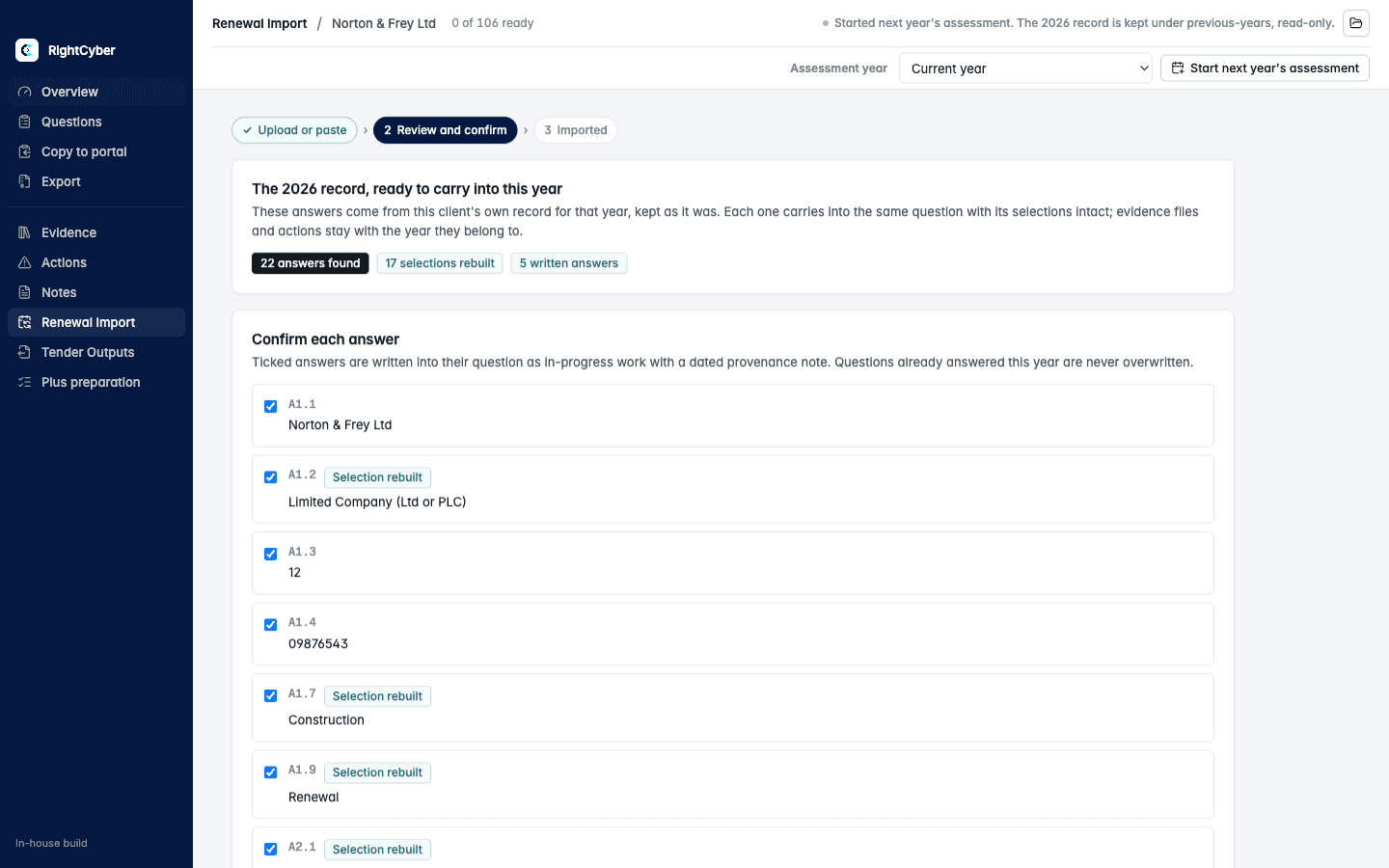
The app opens Renewal Import → Review and confirm with answers from its own previous record. These map to the same question set; the screen shows written answers and structured selections that can be reused.
Importable rows start ticked. Untick any answer you do not want to carry, read the remaining selections and choose Import … confirmed answers. Questions already answered in the current record are kept rather than overwritten. Opening the review alone does not write the answers.
In this demonstration we untick every row except A1.1, organisation name, then import that single answer. That is a useful first check: the legal name may still be correct, while the staff count, device list or cloud services may have changed.
3. Check what a carried answer actually means
Open Questions and select the imported answer. A1.1 now contains the fictional organisation name, has an In Progress status and includes a dated note saying it came from the earlier assessment record.
Carrying an answer does not mark it ready. Check it against the official wording and today's facts. Attach appropriate current evidence, record any uncertainty and use Add action where someone needs to complete or confirm a task.
What is reused and what needs new work?
| Part of the record | What happens when the next year starts | Your review |
|---|---|---|
| Organisation and owner details | Retained in the new record. | Check legal identity, contacts and responsibilities. |
| Answers and their notes | Selected answers are carried after confirmation, with a provenance note and In Progress status. | Check current wording, selections and supporting facts before marking ready. |
| Evidence files, actions and exports | Remain with the previous year's record; the new record starts without them. | Attach current supporting records, recreate relevant open actions and export the new answers when reviewed. |
| Certificates and recurring project context | Certificate records, maintenance rhythm, board signatory and certification body are retained. | Retained certificate dates are history, not a newly issued certificate. Confirm the current arrangements. |
| Deadlines and other project notes | The submission deadline and other non-retained notes start blank. | Set this assessment's target dates and relevant notes. |
For example, a laptop inventory from last year cannot establish this year's device count. Compare it with devices bought, replaced, retired or reassigned. Check software support and protection on the devices in use now. Use the scope guide and unsupported-software plan for those checks.
4. Return to the previous year without editing it
Use the Assessment year selector to open the earlier record, then choose Overview. The app labels it read-only. You can refer to that year's answers and retained records without changing them. Select Current year to continue preparing the new assessment.
In these captures the retained record is labelled 2026 and the new one Current year. Both use the installed Danzell question set. The label is local assessment history; it does not prove support for an unreleased future scheme or represent a certificate's validity period.
If your previous answers are only in a PDF
You can begin from Renewal Import without a previous local year. Choose a supported IASME portal Answer Export or assessment-report PDF, review the detected question set and proposed answers, then confirm what to import. This is a different entry point from starting another year of an existing Workspace record.
A certificate alone, arbitrary PDFs and scanned documents are not supported answer sources. If the app cannot recognise the document or question set, do not assume it imported everything. Keep the source document and resolve missing answers against the official questions. The In-house guided tour shows the wider preparation workflow.
Before you submit the renewal
- Compare every answer with the questions applicable to this assessment.
- Resolve open actions and replace stale evidence with records you can substantiate now.
- Check scope, contacts, staff and device counts, account access and software support.
- Confirm the responsible person can stand behind the answers.
- Use Copy to portal to transfer the reviewed answers manually through the official assessment process, then retain the submitted answers and result.
The self-assessment walkthrough explains preparation and defensible answers. RightCyber keeps the working record organised; your certification body assesses the application and decides the outcome. A Workspace subscription renewal and a Cyber Essentials certificate renewal are separate processes.